Connect xBloom on iPhone
Add beacio to Safari to connect to xBloom from BaristaBloom over Bluetooth. Complete this setup once before your first connection.
Use an iPhone with iOS 26.2 or later and Safari. beacio cannot run in Chrome or in-app browsers.
Open beacio in the App Store ↗Red outlines mark where to tap. Screenshots show Japanese settings; follow the English control names in the instructions when your iPhone is set to English.
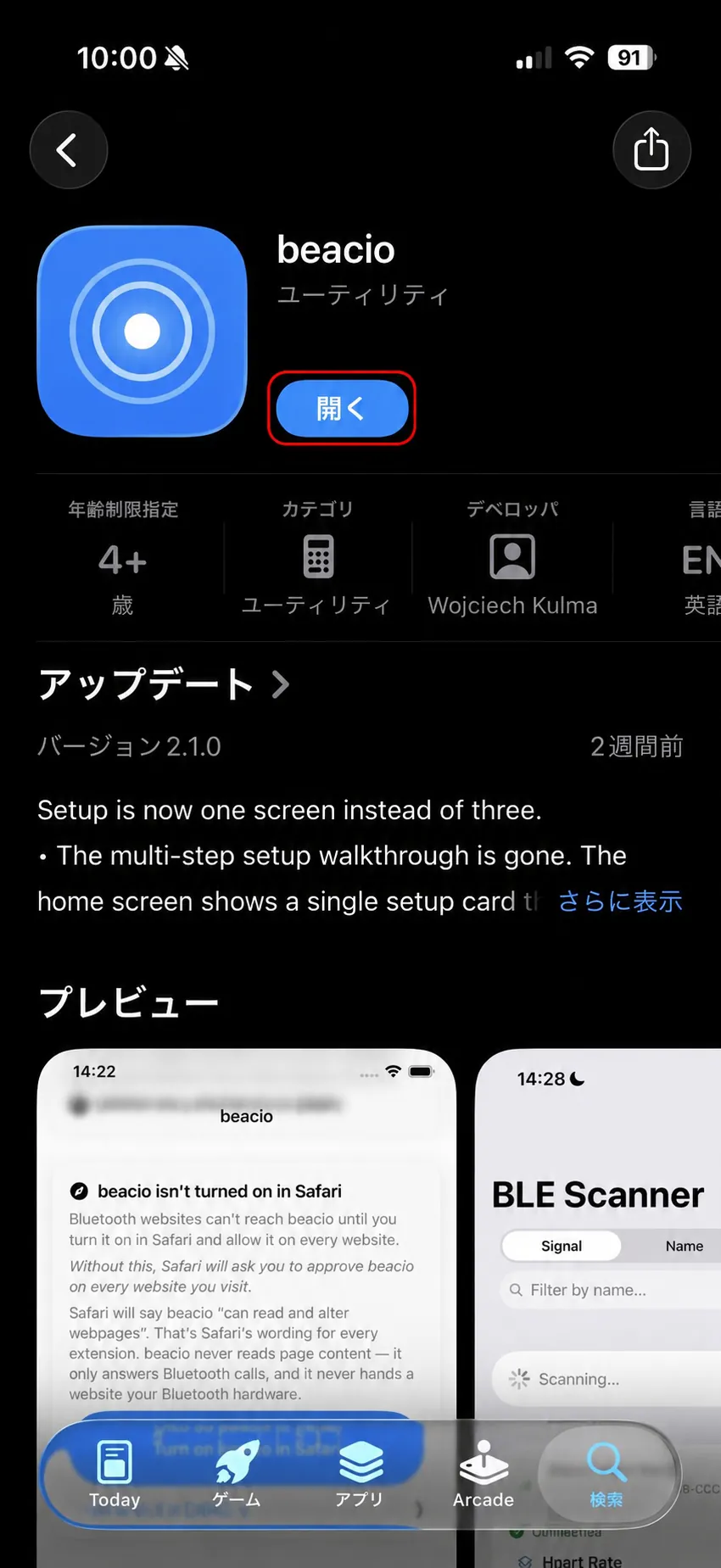
1Install beacio
Get beacio from the App Store, then tap Open. This screenshot shows the already-installed app. Allow Bluetooth if prompted.
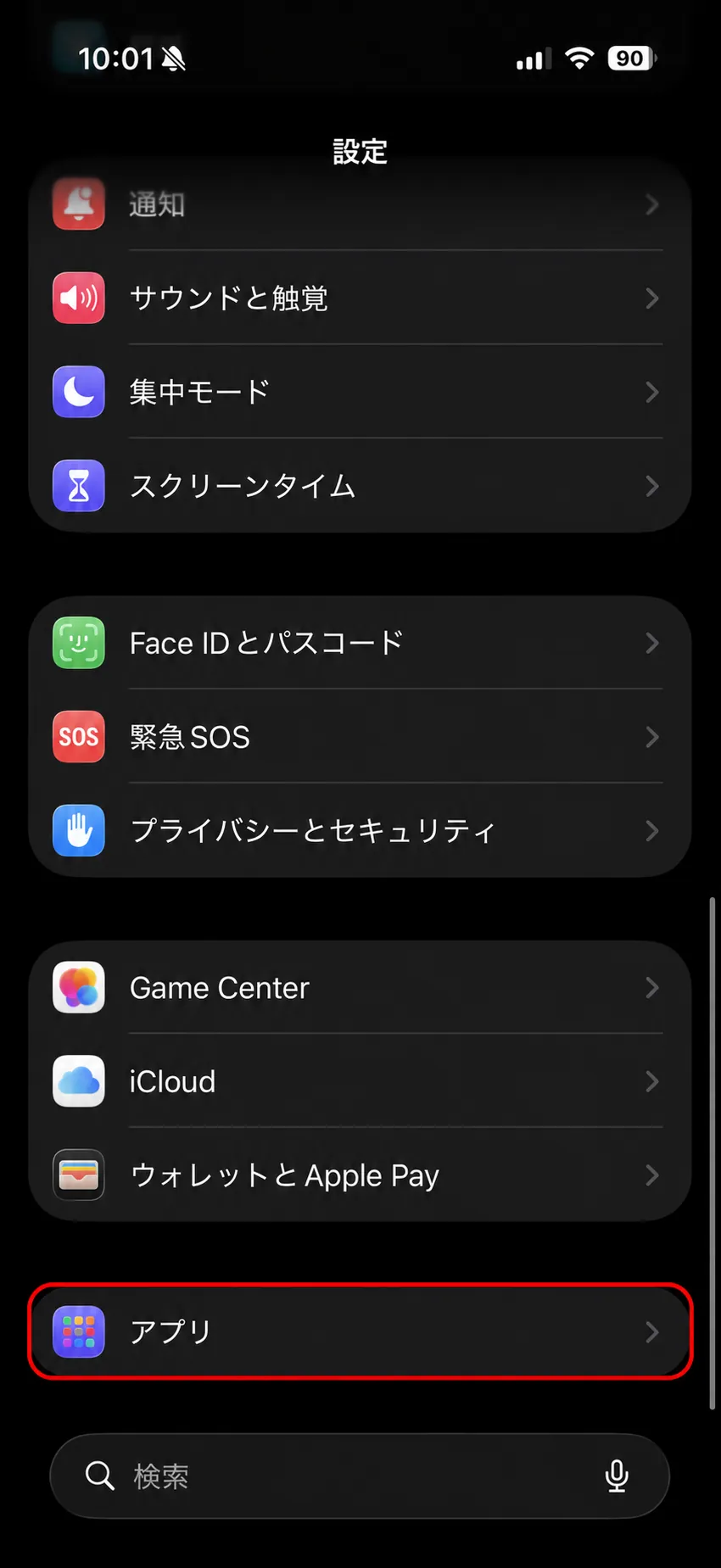
2Settings → Apps
Open iPhone Settings, scroll down and tap Apps.
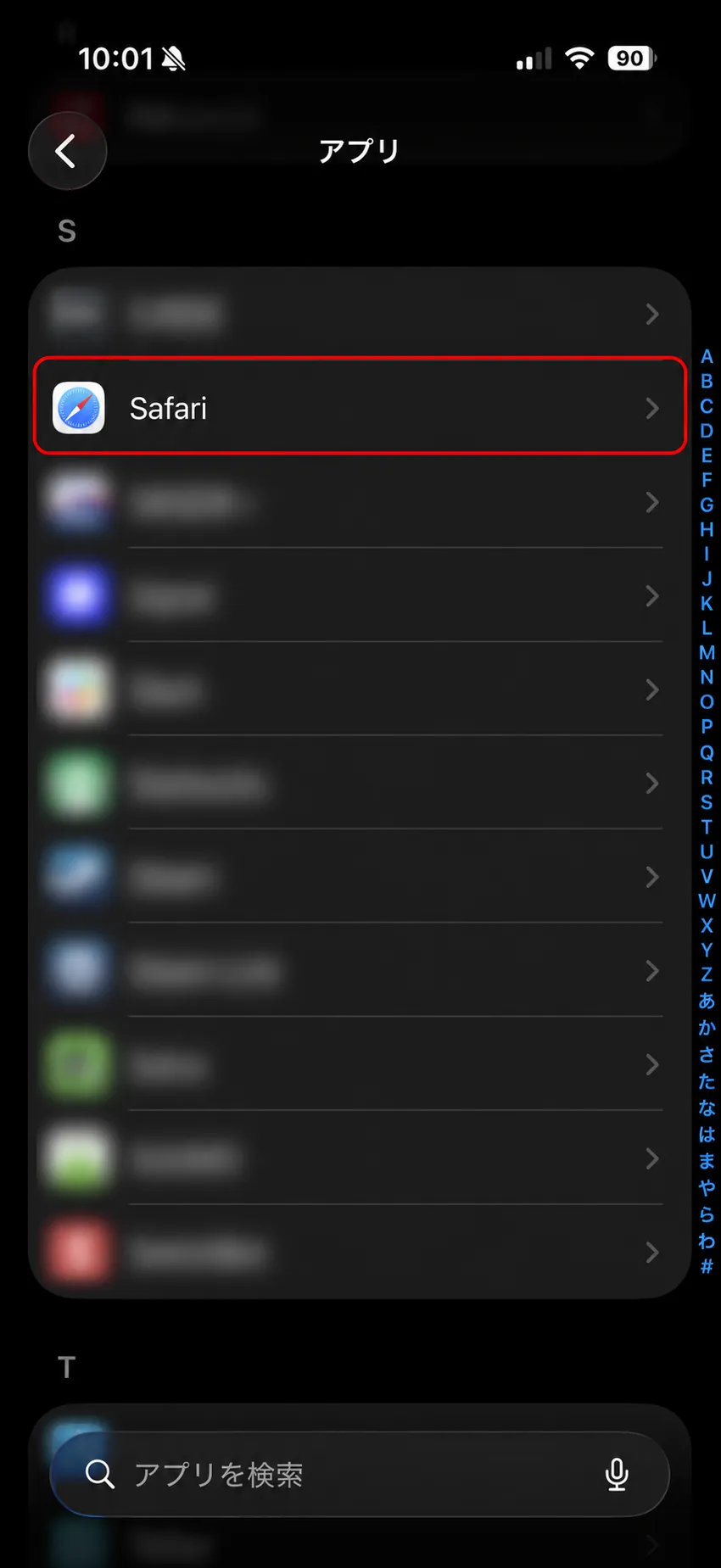
3Select Safari
Tap Safari in the app list. You can also find it using the search field.
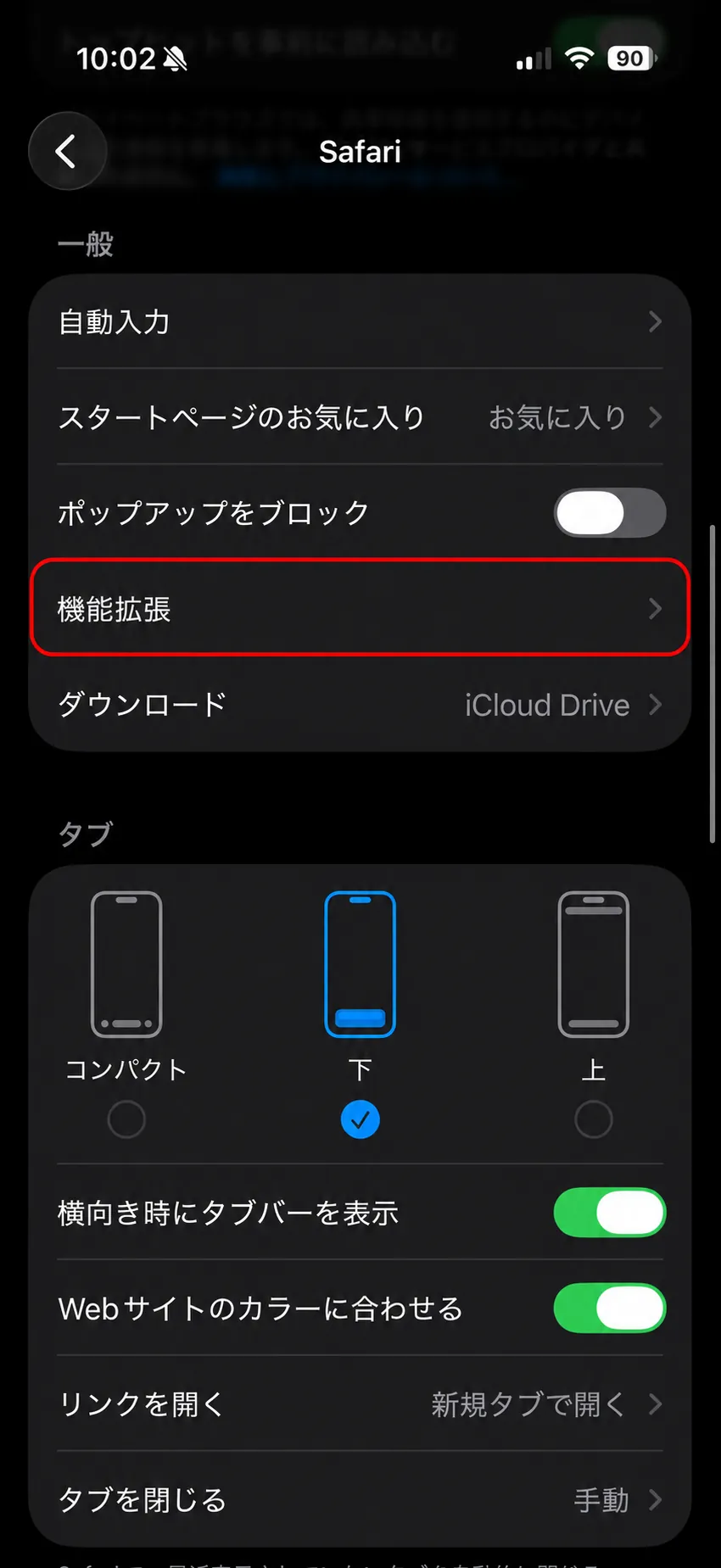
4Open Extensions
In Safari settings, scroll to General and tap Extensions.
5Select beacio
Tap beacio in the extension list. If it is missing, check that installation has completed.
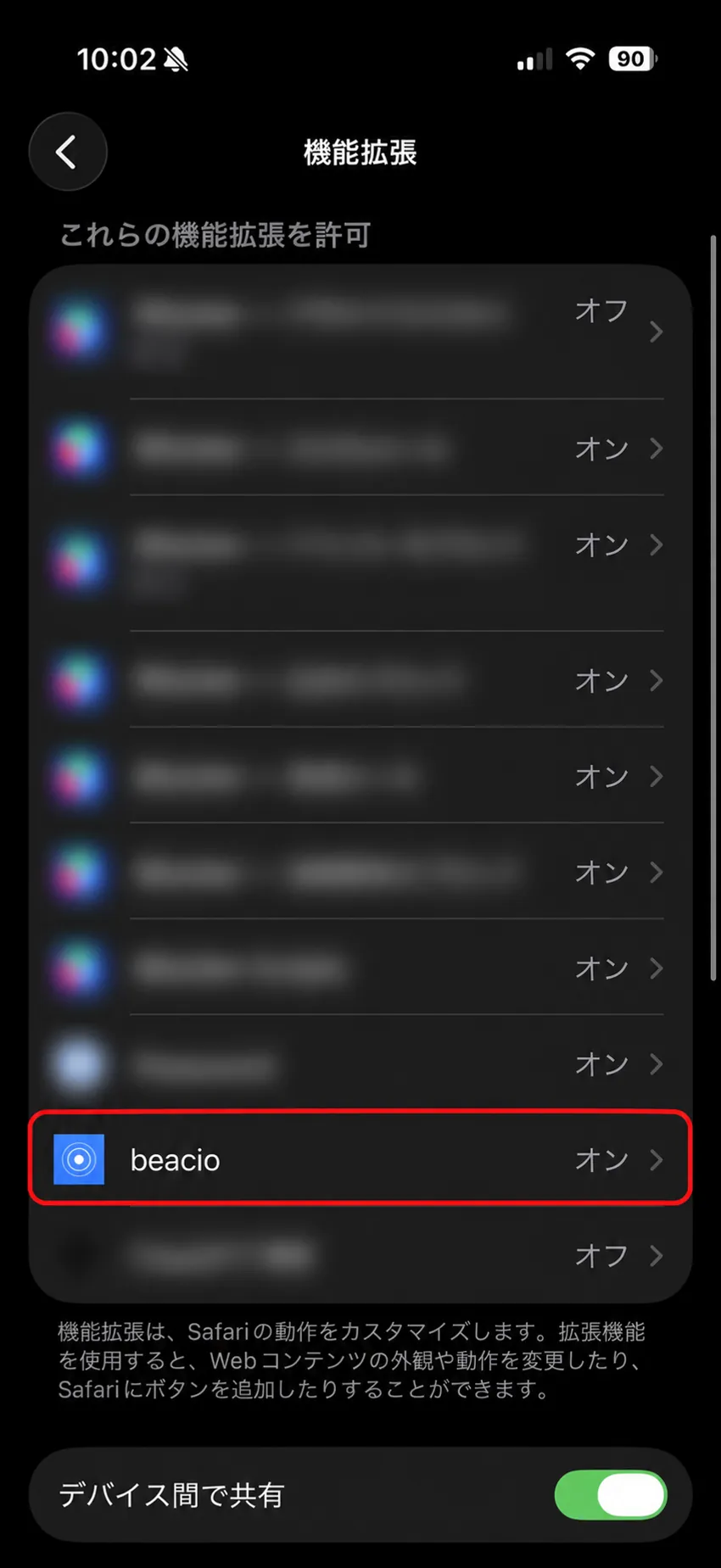
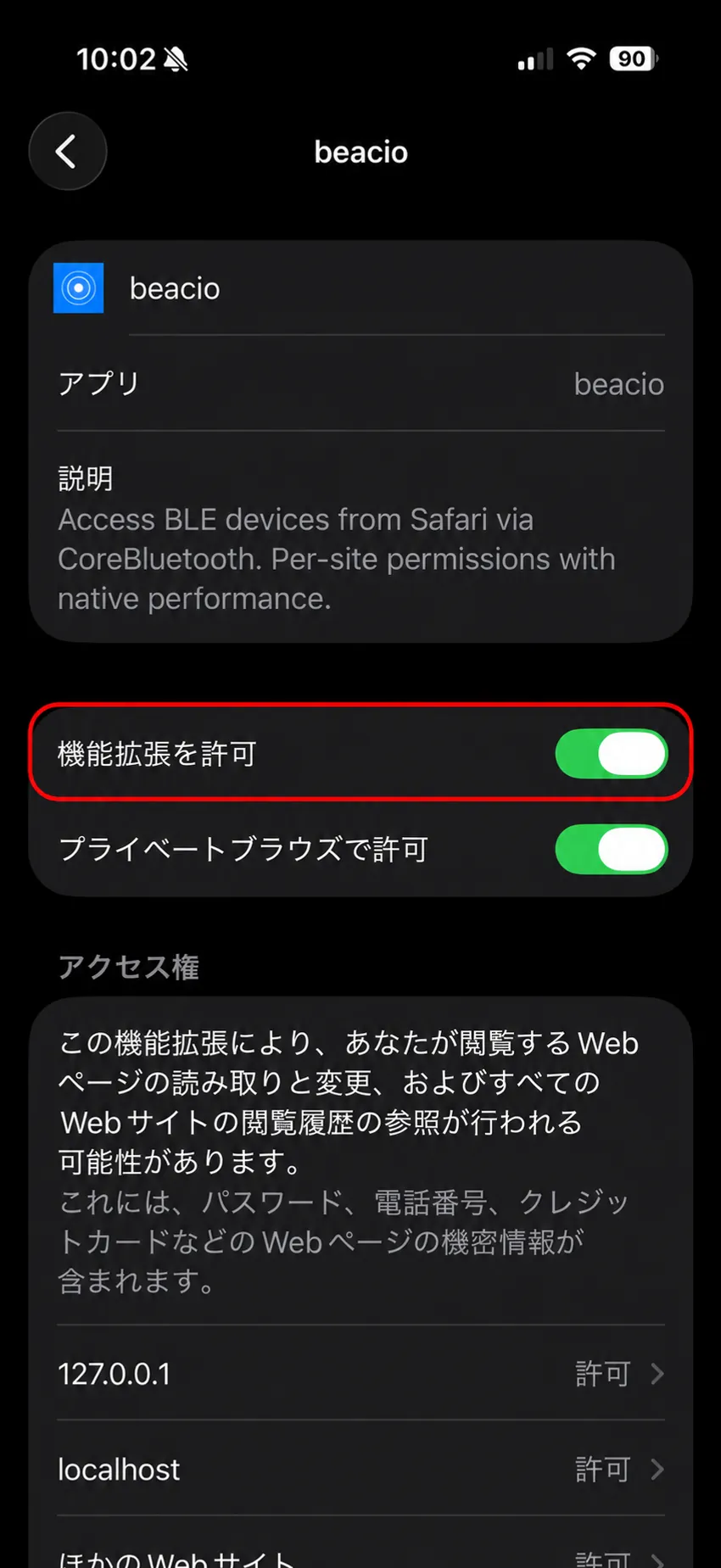
6Allow the extension
Turn Allow Extension on (green). Below it, go to Permissions → Other Websites → Allow. This also grants access on other websites. Private Browsing permission is unnecessary when using a regular tab.
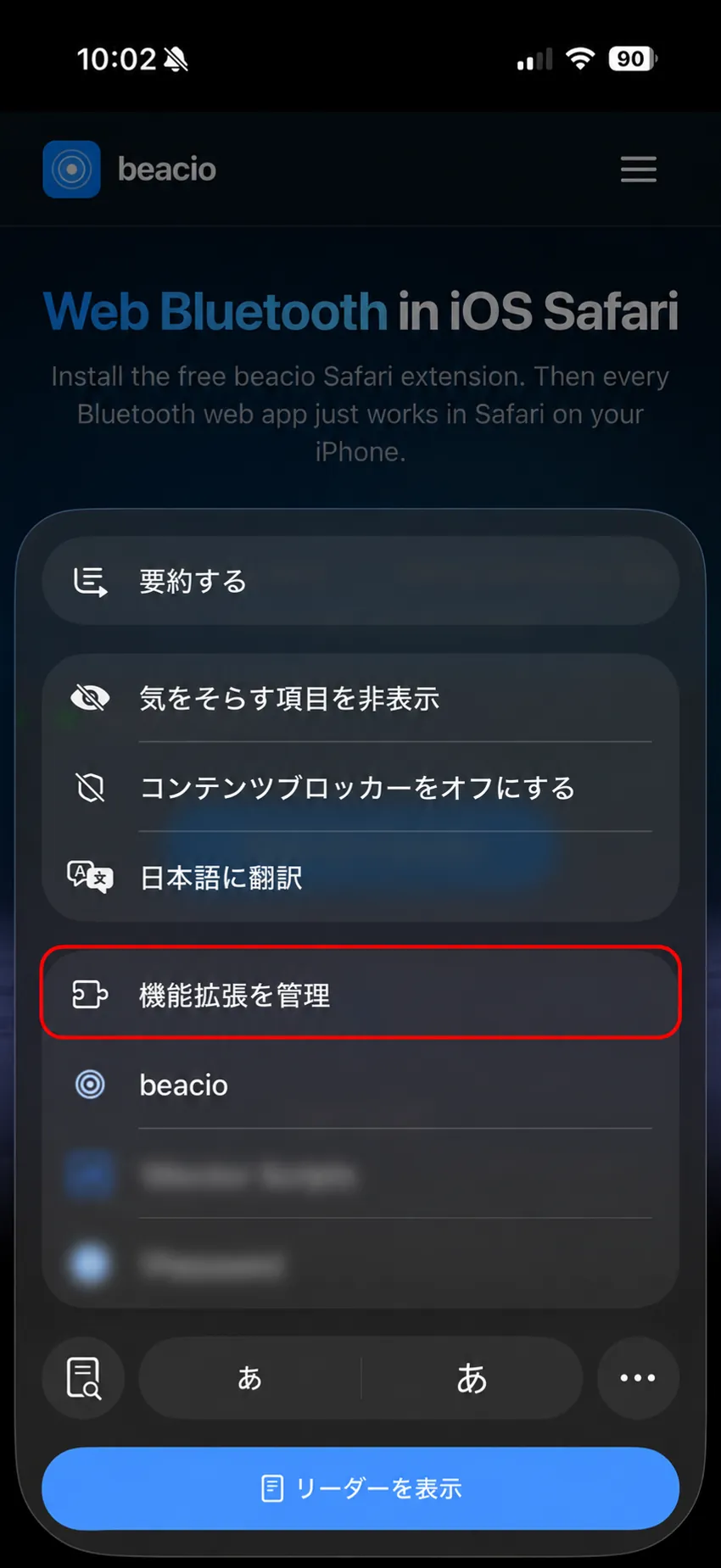
7Open the site in Safari
Open BaristaBloom in a regular Safari tab. Tap the Page Menu button beside the address (aA or the page icon), then Manage Extensions. The website in the screenshot is an example.
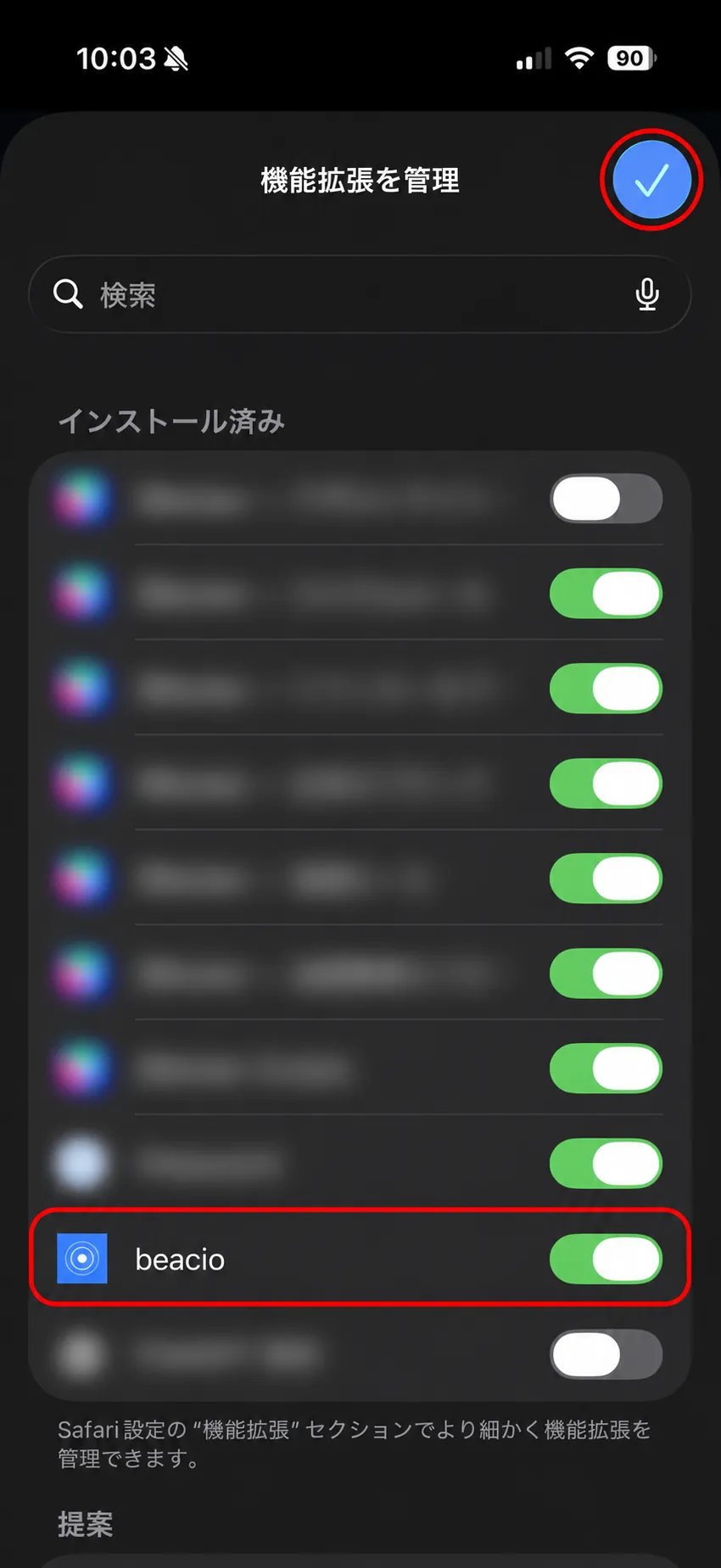
8Enable beacio and finish
Turn beacio on (green), then tap the checkmark at the top right. Allow website access if prompted and reload BaristaBloom.
Connect to xBloom
Turn on iPhone Bluetooth and disconnect the official app and other devices. Press a button on xBloom to wake it, then generate a recipe in BaristaBloom and tap “Send to xBloom” on the result page. Allow Bluetooth if prompted and select the receiving xBloom. Each send creates a new connection and disconnects when finished.
Still having trouble?
- Use a regular Safari tab. Reopen the page in Safari if it is in Chrome or inside a social or email app.
- Open the beacio app to check setup. If Bluetooth was denied, allow beacio under iPhone Settings → Privacy & Security → Bluetooth.
- Check that Safari allows the extension on this site, then reload.
- If the device picker opens but xBloom is missing, check its sleep state, distance, and connections to the official app or another device.
Supported environments
| Device | Browser |
|---|---|
| iPhone | Safari + beacio |
| Android | Chrome (allow Bluetooth and Nearby devices) |
| Windows / Mac | Chrome (BLE-capable Bluetooth required) |
Android does not need beacio. Turn on Bluetooth and allow permissions such as Nearby devices for Chrome. Names vary by OS version. On Windows and Mac, enable Bluetooth and check both OS and browser permissions.